Why this is changing
Following FluidOne’s acquisition of CNC in 2023, we have been aligning our systems and services across the wider business.
This change helps us use a consistent remote management platform across our teams, which supports a more streamlined service for customers.
As part of this work, we are moving our Remote Monitoring and Management (RMM) platform from ConnectWise Automate to N-able N-central.
What this means if you are a Windows user.
For most customers, there will be little to no noticeable difference. The new platform will continue to run in the background in much the same way as the current one.
You may notice a small number of visible changes:
System tray icon
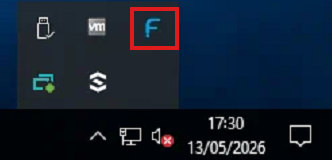
You will no longer see the FluidOne icon in the system tray in the bottom-right corner of your screen, as shown below.
Remote access approval prompt
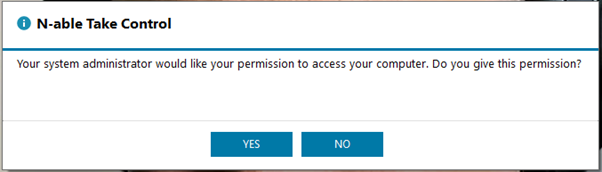
When one of our engineers needs to access your device to provide support, you may see an approval pop-up. With the current tool, that prompt looks like this:

After the change to the new platform, the approval pop-up will look different. The new prompt is shown below:
Windows update notifications
Keeping your device up to date is an important part of protecting it. FluidOne manages Windows updates for you, reviewing and approving updates before they are deployed to your devices.
Most updates are installed in the background while you work. Some updates will require a restart to complete installation. When this happens, please restart your device as soon as it is practical to do so. If the prompt appears at an inconvenient time, you may be able to postpone it and restart later.
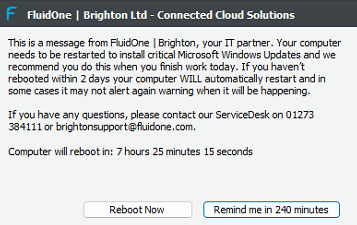
With the current tool, when your device needs to restart, you may see a notification in the bottom-right corner of your screen similar to the message below:
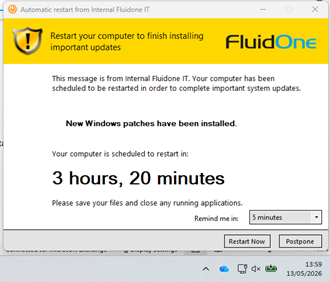
With the new platform, if your device needs to be restarted after an update, the notification will look like this:
What this means if you are a Mac user.
Menu Bar icon
You will no longer see the FluidOne icon in the menu bar at the top -right corner of your screen.
Remote access approval prompt
When we connect to your Mac currently you will get a notification pop up and it tells you that we are connected, displaying the name of the engineer.

When we to connect to your Mac using our new platform, a consent prompt will be displayed like the one below
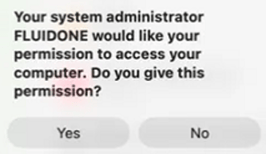
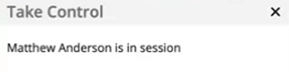
When you allow us to connect to your Mac, you will then see the below in the bottom right-hand corner of your screen. This also shows you the name of the engineer connected to your Mac
If you are ever unsure whether a pop-up is genuine, please contact our Helpdesk and we will be happy to help.