
What is a Memorable Word and what is it used for?
A memorable word is an additional security feature often used to verify your identity. It’s typically a word or phrase that you choose and can easily remember, but is hard for others to guess.
When prompted, you’ll be asked for specific characters from this word rather than the whole word, adding an extra layer of protection.
Why Set a Memorable Word?
Adding a memorable word gives us an easy way to confirm who you are when you call in for support and is an alternative option for those staff members who are not comfortable in allowing us to hold their mobile number on record.
To help us keep your data safe, we regularly review and look at what we can do additionally to mitigate the ever-evolving risks posed by cybercriminals trying to steal company and personal data.
How to Set Your Memorable Word
- To set your memorable word, please go to the FluidOne Brighton Portal as show in the screenshot below.
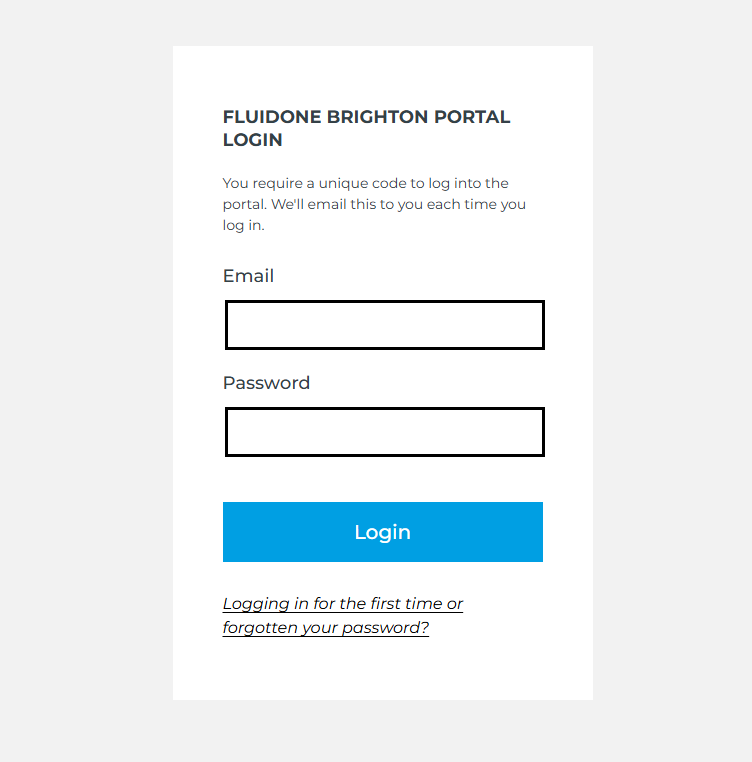
- Please log in using your own company email address and your FluidOne Portal Password
- If you have not logged in before or you have forgotten your password, please press the link ‘Logging in for the first time or forgotten password?’
- You will then see a window pop up asking you to enter your email address like in the screenshot below.
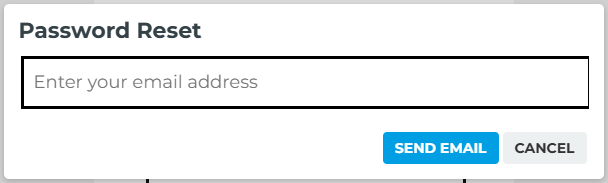
- Enter in your email address and press the ‘Send Email’ button.
- You will then receive an email guiding you through resetting your FluidOne Portal Password.
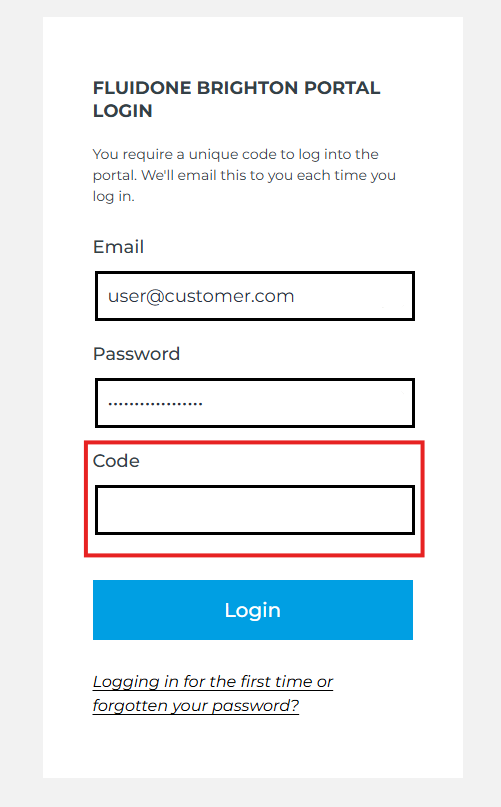
- Once you have reset the password, please go back to the Login page and enter in your credentials. Please note that you will receive an MFA code each time you log in via email. Please see the screenshot below showing where you need to enter your MFA code.
- Once you have logged in you will see a screen like the one below
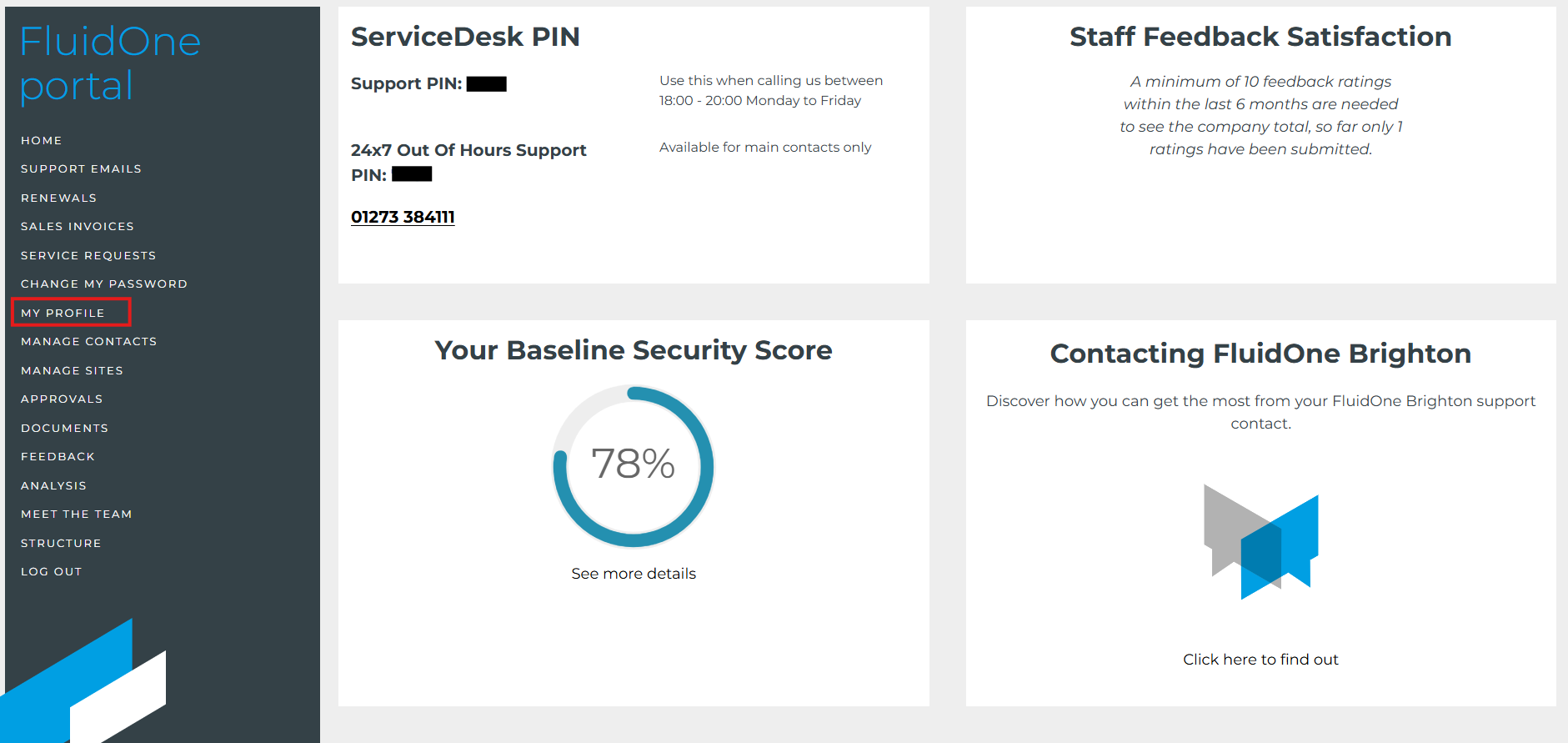
- Select ‘My Profile’ from the left-hand side, and you will see a screen like the one below
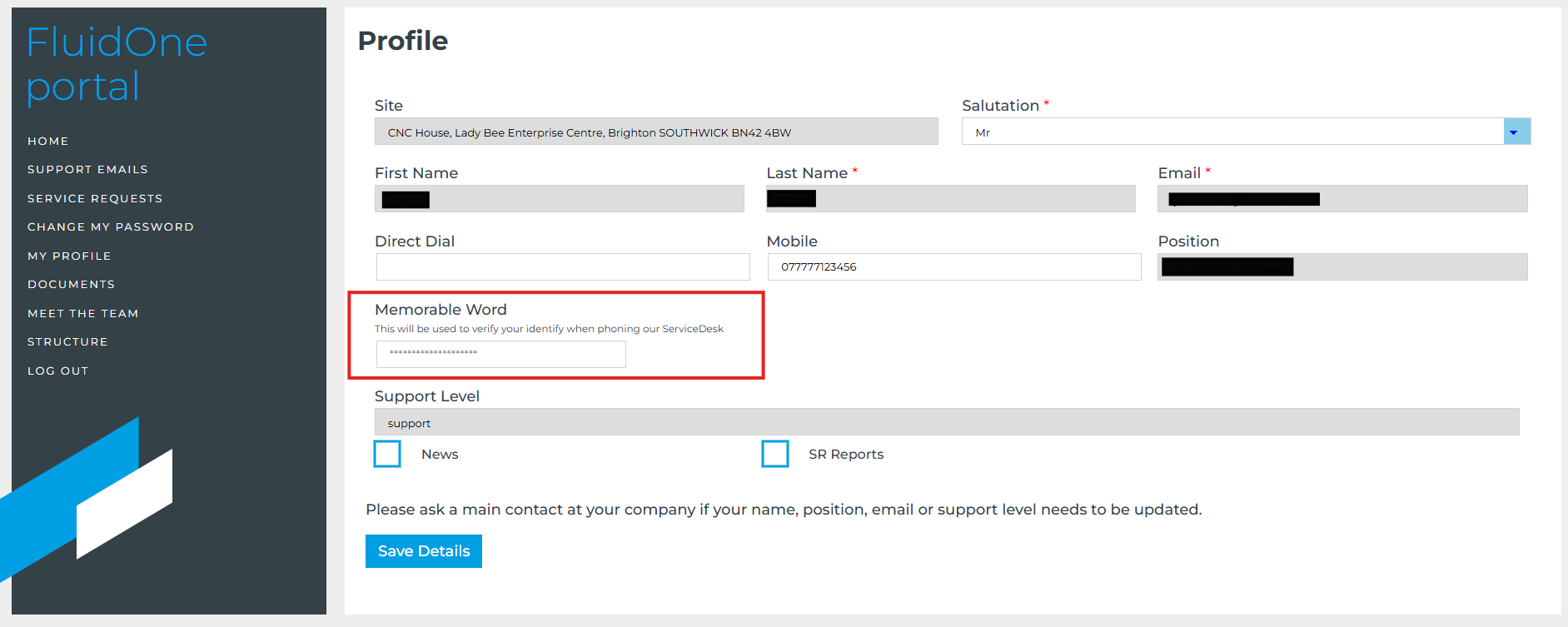
- Please enter your ‘Memorable Word’ in the box as highlighted above using a word that is at least 8 characters long.
- Press the ‘Save Details' button to save your ‘Memorable Word’
- Next time you call into the FluidOne ServiceDesk, you may be asked to give two random characters from your memorable word in order for us to verify your identity. You will never be asked to provide the full word, and our Agents do not have access to see the full ‘Memorable Word’ they will only be able to see the two random characters that will allow us to verify who you are.

Subscribe to our email updates